Table of Contents
Get Your Team Connected
Simplify Your Home Care Operations
CareCade helps DDA and HCBS providers manage scheduling, EVV, and billing in one platform.
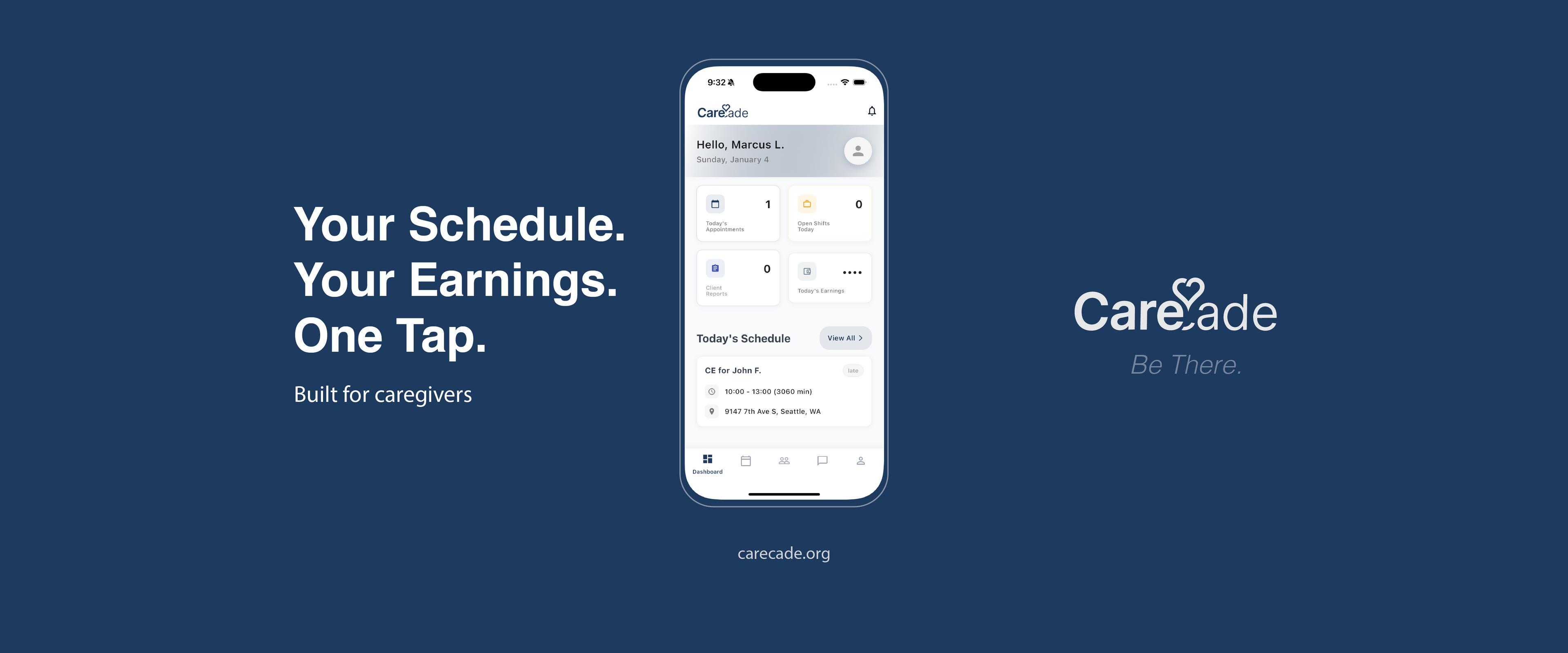
The CareCade mobile app puts everything your caregivers need right in their pocket. GPS check-ins, real-time schedules, service notes, and more - all synced instantly with your dashboard.
Download the App
iPhone & iPad (iOS)
Search for "CareCade" in the App Store, or use this direct link:
Android
Search for "CareCade" in the Google Play Store, or use this direct link:
What Your Team Can Do
GPS Check-In
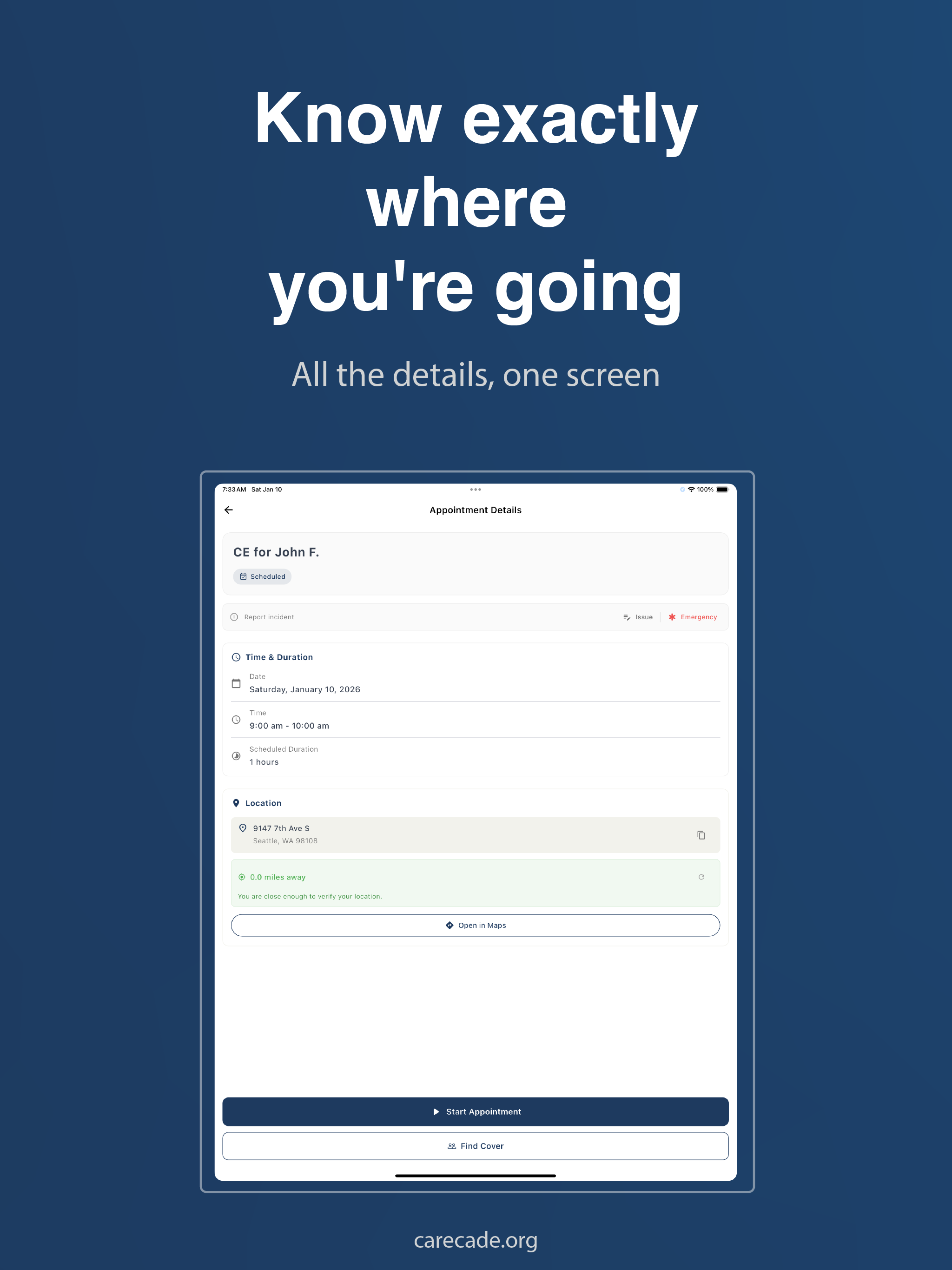
When caregivers tap "Start" or "End" on an appointment, the app verifies they're at the client's location. This ensures accurate time tracking and EVV compliance - no more manual verification needed.
Mileage Recording
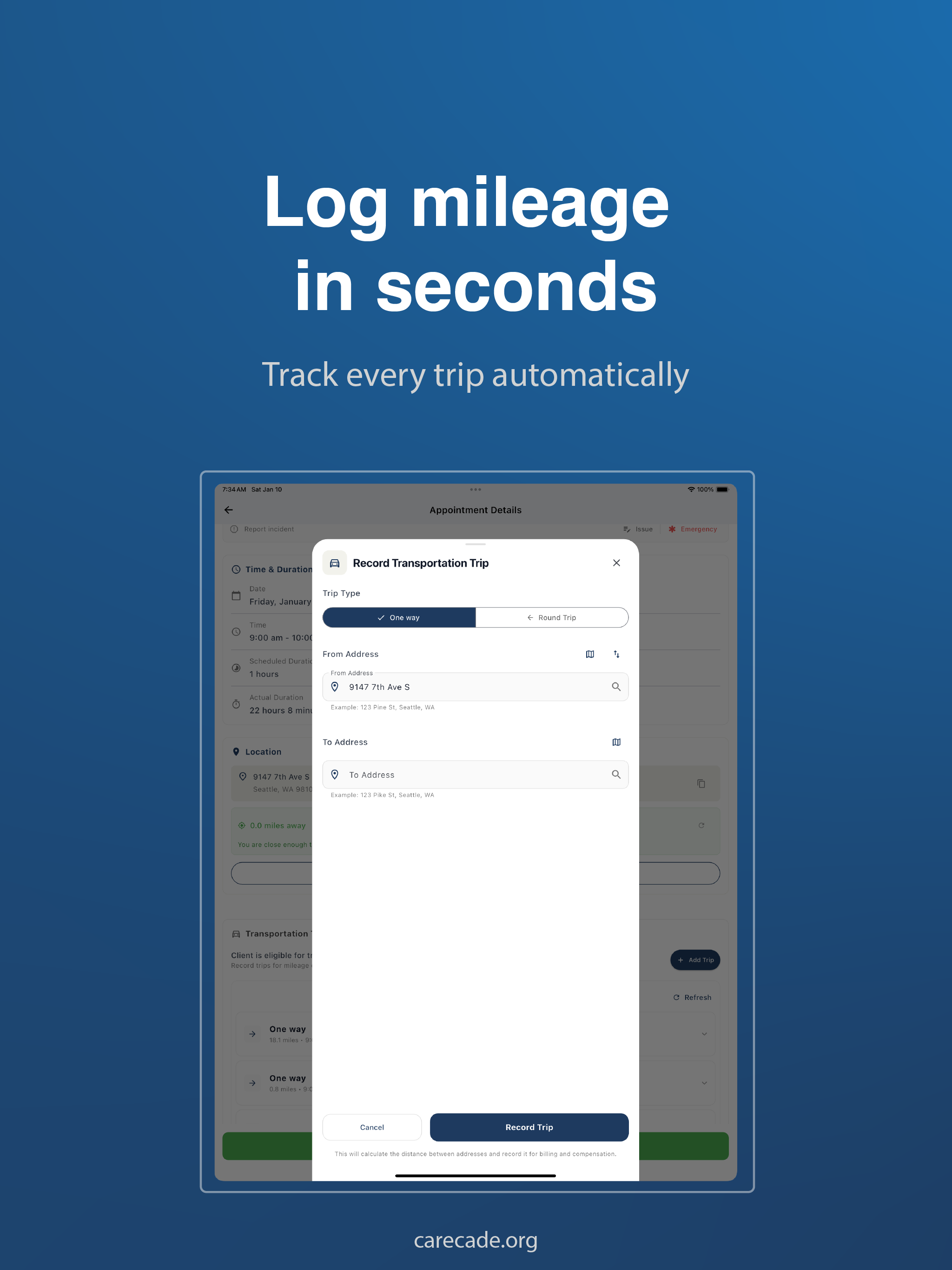
For clients who qualify for transportation services, caregivers can log trips directly in the app. Mileage is automatically calculated, reimbursements flow into payroll, and billing is tracked per client - no more manual paperwork.
Weekly Schedule View
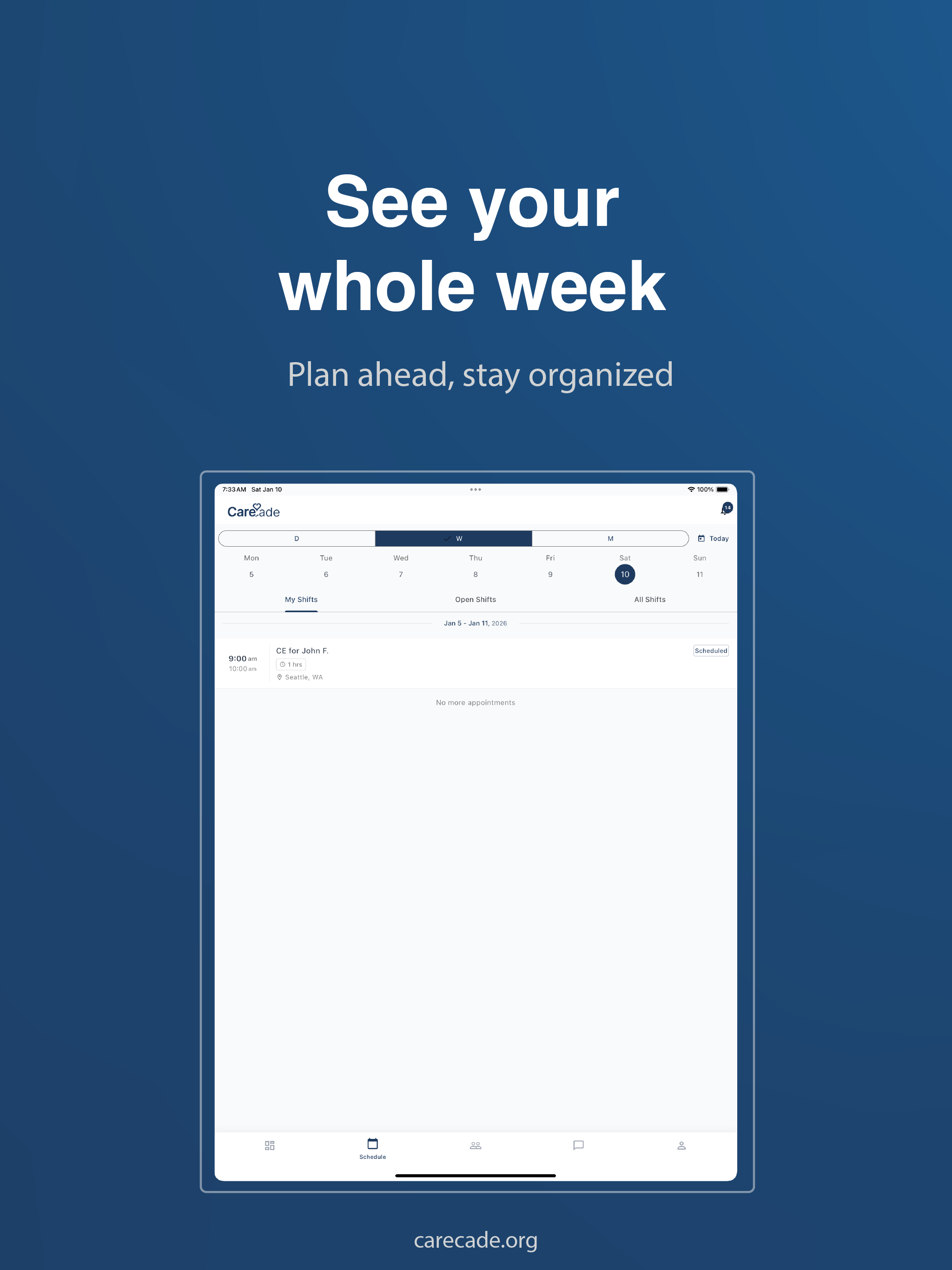
See your entire week at a glance. Plan ahead, stay organized, and never miss an appointment.
Service Notes
Add notes and photos on the spot during visits. Everything syncs to the client's record in real-time, so office staff see updates immediately.
Offline Mode
No signal at a client's home? No problem. Basic features like viewing schedules and starting appointments work offline. Data syncs automatically when you reconnect.
Getting Your Team Set Up
Once a team member is fully onboarded, they automatically receive a welcome email with app download links and login instructions.
Step 1: Download the App
Have each team member download CareCade from their device's app store using the links above (or from their welcome email).
Step 2: Login with Email
Logging in is simple - no password needed:
- Open the app and enter your email
- You'll receive a temporary code via email
- Enter the code to sign in
That's it - secure, passwordless login.
Step 3: Enable Location Services
When prompted, team members should allow location access. This enables GPS check-in verification - a key feature for EVV compliance and accurate time tracking.
Step 4: Test with a Mock Appointment
Before going live, have everyone practice checking in and out with a test appointment. This builds confidence and catches any setup issues early.
Common Questions
Does the app work offline?
Yes! Basic features like viewing your schedule and starting appointments work offline. Data syncs automatically when you reconnect to the internet.
How does GPS check-in work?
When you tap "Start" or "End" on an appointment, the app captures your location and verifies you're at (or near) the client's address. This creates a verified timestamp for EVV compliance.
Can I see my schedule for the week?
Absolutely! The schedule view shows all your appointments. You can view by day or week and see client details, addresses, and notes for each visit.
What if I'm not receiving the login code?
Check your spam folder first. If you still don't see it, contact your administrator to verify your email address is correct in the system.
What devices are supported?
- iOS: iPhone and iPad running iOS 14 or later
- Android: Devices running Android 8.0 or later
Need Help?
Our support team is here to help you get set up. Contact us at support@carecade.org or use the chat feature in your CareCade dashboard.
Ready to streamline your home care operations? Start your free trial or learn more about CareCade.